Monday, 8 March 2010
Le Professeur

Tuesday, 24 March 2009
Add A Photo Feeling To Your Images
This is a quick tutorial on how to add a Polaroid effect to your photos, we’ll start first by choosing an image for our project , You can use any picture you want . I chose to use an image I found in a quick search on Google images.
Step 1 : GETTING THE IMAGE READY
Browse to the image you want to use and open it in Photoshop. Now using the Rectangular Marque tool drag a selection around the image excluding some areas that might be unnecessary and try and let the selection have a ratio of 3:4 as much as possible , its important for the photo feeling of your image.
Now press Ctrl + J to create a new layer from the selection you made. Name the New layer “Photo” , Now go to the layer named background , press D on your keyboard to set the default foreground and background colors as Black and White and then press Ctrl + backspace to fill the layer with the background color (White)
STEP TWO : ADDING THE EFFECTS
Now click on the layer named “Photo” and double click at the far right end of the layer selected to open the layer style window , if that doesn’t work go to the Layer menu (Next to File , Edit , Image , etc … ) and choose layer style > stroke . Set the color of the stroke to white and the size to about 10 and choose the position as inside rather than outside or center. The changes will not be visible at first since you have a white background.
Go again to Layer style like we did in the previous step and now choose Drop Shadow , Keep the settings intact and raise the size to about 10 and the opacity to about 25 and click OK
STEP THREE : POSITIONING
Now press Ctrl + T to transform the layer a bit and position it just perfectly , this is all up to you at this stage , personally I just added a little rotation and reduced its size a bit and below you can see the final product
That’s it , a nice photo feeling to your digital images in a few quick steps and it won’t even take you more than a minute , you can use this to create all sorts of collages on your computer and maybe to create a cool looking wallpaper for your laptop !!
Thursday, 19 March 2009
B For Brush Tool (Part 2)
Llast post I told you about some of the options you might find useful using the brush tool and today we will continue by talking a little bit about Scattering and Shape Dynamics among other options and we will learn how to create a brush
Lets start by pressing B on the keyboard to select the brush tool then open the Brushes palette by clicking on the icon indicated in the image below
When the Brushes palette opens you’ll see a list of different options you can use to further customize the behavior of your brushes , my two favorites are Scattering and Shape Dynamics
1-Scattering allows you to control and set the scattering of your brush using a number of options like Scatter , Scatter count and count jitter
2- Shape Dynamics allows you to control pen pressure for the brush tip and the rotation using Angle jitter among other options as well
3- Other Options include settings for Color Dynamics Texture, air Brush and other options as well, Mess around with the options and fiddle with the setting , experiment a little and you’ll find that a few tweaks can make you use brushes more efficiently
CREATING BRUSHES
We’ll start with something simple just to give you an idea , lets start by opening a new document , press Ctrl+N on your keyboard to open a new document 5x5 pixels with transparent background as shown below
Now zoom in till you can clearly see a square with 25 squares , it will be easier for us to draw now , select the pencil tool by clicking and holding the brush tool in the tools menu
Now using the pencil tool draw two lines passing through the centre (One horizontal and one vertical) to form a cross, make sure the size of tip if the pencil is only 1 px (Most of what applies to the brush applies to the pencil as well)
Now to create a brush from the shape we drew, Go Edit > Define Brush Preset , in the new window that pops up you can change the name of your brush , of course you’ll notice that the size of the brush is shown as 5px , this is because we chose the size of our document as 5 x 5 px …. Rename your brush “cross” and press OK
You have just created your first brush now lets go find it and use it , open a new document of any size , say 100 x 100 px and choose the Brush tool and then change the brush tape to the brush you just created , if you are finding it hard to find , switch to text only view and look for it by name , mess with it a bit , play with scattering options and shape dynamics
Photoshop is an exciting program that always has a new thing to teach you so you should always experiment and be curious , I hope this post was as helpful as I hoped it to be and I will be continuing this series next week as we see what the letter C on your keyboard does in Photoshop!!
One final note is something I have learned writing this post is that B selects any of the tools you have selected in the brush option and that includes wither of the pencil tool , the Brush tool or the color replacement tool , whatever you selected last will be selected again when you press B
Wednesday, 5 November 2008
B For Brush Tool (Part 1)
One of Photoshop users’ favorite tools, the brush tool is the final touch any Photoshop masterpiece needs.
The Tool
The Brush tool will appear in the tools panel as a brush symbol, pressing (B) on your keyboard will select it so for now press (B) on your keyboard. Once you have selected the brush tool you’ll see a number of options for the brush tool at the top of your Photoshop window that will look something like the image below depending on what version you are using (The screenshot below is for Adobe Photoshop CS3)
From left to right we will familiarize with the options available for the brush tool, the first is the tool preset picker we have explained thoroughly last time while talking about the pen tool.
Tool Preset Picker
The tool preset picker basically has a list of presets for a number of Photoshop tools including the one you have picked and clicking on the small black triangle (downward arrow) opens the list of available presets that you can add to, for a better and more detailed explanation with screenshots about this option check my last tutorial
Brush Preset Picker
The next option (see image below) is the brush preset picker, you can access it by clicking on the black triangle (Downward arrow) marked by an arrow in the image below
Clicking on the arrow will bring down a menu (shown in the image below), at the first glimpse you will see a few options that are basic knowledge for anyone who wants to use brushes frequently, the first is “Master Diameter” which is basically the size of the brush you want to use, now normally brushes come with their own default size but you can make a brush bigger or smaller moving the scroll down and up the line or typing in the number you want.
Below it you have the “Hardness” of your brush which is basically how soft or hard you want the edge of the brush to be, the less the hardness is the softer the edges of the brush become and the higher the hardness is the harder the edges are
Then finally below the “Harness” and “Master Diameter” you have the list of brushes available for you to use. Photoshop comes with a number of default brushes you can use to make all sorts of wonderful stuff with but you can also download new brushes via the internet or even create your own in Photoshop, we will cover these two later .
You will also see two buttons (See image below), clicking on the first one gives you access to a number of options for the brush preset picker menu including the view you want for the menu which ranges between text only (to show only names of brushes) to small or large thumbnail preview and a small or large list and finally a stroke thumbnail preview.
You then have a preset manager that allows you to delete, rename load and save preset brushes which of course can be accessed too by right clicking on any brush in the brush preset menu directly you can rename or delete a brush preset, you then have Reset Brushes and Save/Load Brushes and replace brushes options which are quite self explanatory. then you have a list of all the brush preset sets you have loaded
Brush Mode
The next option, shown in the image below is the Mode of the brush which is basically the mode in which the brush will blend with the its background below it. Press on the small arrow as shown in the image to open the drop down menu and select a mode. By default its set as Normal but you can change it. Selecting a perfect blending mode can be very tricky and is the best way to keep your brushes textured and add a feeling of richness to them.
You can choose the blending mode of the brush before you start using it but after you apply it you can’t change the mode … the change in blending mode will only take place if applied before the use of the selected brush. Below are three examples of the same brush in three different blending modes : Normal, Overlay and Hue and as you can see each mode blends differently with the background.
You can either apply the brush directly on the layer or image you want to edit or you can apply it on a new empty layer of its own . If you apply it on the same layer you can use the Mode option (shown in the images above) to alter the mode you want the brush to blend in with the layers below it with, This way is only effective if used before you apply the brush.
If you already applied the brush on the same layer you can still edit the blending mode and opacity of the brush. Go Edit > Fade Brush tool (Keyboard Shortcut = Ctrl+Shift+F) and a small pop window will appear in your Photoshop as shown in the image below
make sure you check the Preview option (Click in the checkbox marked by a circle in the image below) so you can be able to preview the changes you are making on the brush, The Mode option works in a similar way to the option we have explained before .. Press on the arrow to open the drop down menu like we did before and use the scroll in the Opacity option to make the brush less or more transparent
Opacity and Flow
The Opacity and Flow tool are two options to control the strength of color of the brush tool, the first does so by reducing the opacity of the whole brush and the other does so by reducing the color applied to the brush … The end product is generally very similar , if any of our readers have a better interpretation of this but it seems that lowering the flow of the brush is equivalent to lowering the transparency of the brush tool. The Opacity and flow options can be found located as shown within the red box in the image below
As I might have said before, the Brush tool is one of the most frequently used tools in Photoshop, it is used to create textures, backgrounds, clean and even edit pictures and thus its one of the most customizable and option stacked tools. In the next part we will cover how to create a new brush preset and we will see more options for the brush tool such as scattering, randomness and much much more
Wednesday, 15 October 2008
A for Path Selection Tool
Press A on your Keyboard and you will immediately notice that your mouse pointer has turned into a black slightly tilted arrow, this is the Path selection tool, you have toggled it using its Designated keyboard shortcut A. But before we learn how to select a path, maybe we should talk a bit about paths in Photoshop.
A Path is a route travelled between two points and in Photoshop any line joining two points is called a path, thus we have two types of path, open paths and closed paths in Photoshop. Open Paths are called lines and closed paths are called shapes.
Paths are usually drawn using the pen tool to draw two points or more (Since a path needs at least two points). The pen tool grants you access to a number of options at the top of the page (see image below). Starting from left to right we will try explain what every option does and how and when you should use it
The thing looking like a pen (1) , it actually shows you the tool you are using, and right next to it you see a small black triangle pointing downwards (2) , click on it and it will show you a list, this is the tool preset picker, it has a number of presets for a number of Photoshop tools, some of which you might not be using that’s why you will see a small box (3) that says “Current tool only” next to it, checking that box will show you presets for your current tool only while unchecking it will show all presets for all tools, its usually unchecked by default (See image below)
while the tool preset menu is still open you will see a small black triangle pointing to the right (4) Click on it and this will open the options menu for your tool preset menu which gives you the chance to customize how the menu looks and how things are sorted in it among other options but maybe the most important is the first option “ New Tool Preset” which allows you create a new tool preset Based on your current settings for the tool you are currently using
Shape Layers and Paths
If you chose Shape Layers (1) anything you draw using the pen tool will be treated like a filled path while anything you draw with the Paths (2)Chosen will be treated like an empty path, to make it even more obvious its better to use the pen tool to draw three points while choosing the shape layers and then using the pen tool to draw three points while choosing the Paths option. If you still haven’t figured out the difference read along for more screenshots and more clarification.
While choosing the paths option draw three points (1,2 and 3) as shown in the image below, you will see that these points are joined by a line only and the area between them is not filled by any sort of color, and the line isn’t really filled with any color either.
If you do not have the Paths panel open go to the top of the page and go Windows>Paths and in the paths panel you will see the path you have just created (See image below). In the image I have used the pen tool twice on the same document, one having chosen the Shape layers option and the other having chosen the paths option, you can see from the image below that the path I drew using the shape layers (1) is called Shape 1 Vector mask by default and it clearly tells you we have created a vector shape (as we have explained earlier) while the other one we have drawn using the Paths option is called Work path (2). Work paths usually offer you more control over what you want to do with the path you have just created.
Select the path you want to work on from the Paths panel and right click on it (In the paths panel) to access its options which offers you a few things to do to your path (see image below), you can delete a path or make a selection out of it but the two most important options are “Fill path” and “Stroke Path”
Stroke path will fill the stroke of your path (That is the path itself) using your choice of tool, you can also use it with other tools like the blur tool for example to blur the outline of an image etc … the stroke path option takes the settings from your current tool so you might need to know what tool you will be using before hand and set its settings right for use , I usually use it with the brush tool and the pencil tool, the pencil is more effective if you just want to make an outline
You can change the tool used using the drop down menu as shown in the image above.
If you choose Fill path you will be met with another window with fill options for your path, once filled the path will usually resemble in shape a path drawn using the “Shape Layers” option but it still proposes more customizable characteristics.
The fill options windows shown below allows you to select what you want to fill your path with : foreground color, background color, a color of your choice , a pattern, etc … It also allows you to set a blending mode for how the new fill will blend with the layers behind it including opacity.
Last but not least you have the “make selection” and “Delete path” option, the make selection makes a selection out of your path you can use to cut images while the Delete Path does exactly what it says, it will delete the path
you can save layers by clicking on that little black triangle in your paths panel at the top right of it (See image below) and later you can load it back
While working with the “Shape Layers” option selected the options you get granted will be trimmed down to just two “ Make Selection” and “Delete Path” so that’s why I usually prefer to work with paths rather than shape layers, because they give you more room to work with later
A little note on how the Shape layers option works and why its called Shape Vector Mask , If you drew a triangle using the red as your foreground color and using the Shape layers option you will see a red triangle on the screen, but what happened if you delete the Path you drew from the paths panel ?? you will be left with a big red screen because what the path you drew was making was actually filling the layer with a color (In this case red) and then masking parts of the screen to give it whatever shape you drew (In this case triangle), deleting the path will mean you have deleted the mask and thus are left with just the background
At the bottom of the paths panel you will see six options (Image above) , some of which emulate options available in the right click menu of any path. some of these options might be available to paths while others to shape vector mask and vice versa , the first one is “Fill Pat with foreground color” which does exactly that and the second is “Stroke path with brush” that also does just what it says.
The third option is “Load path as a selection” which turns the path into a selection and the fourth is “make work path from selection” its very helpful if you have an precut image and you want to turn into an outline , you select it and you can turn the selection into a path, the path will have the look of the outline of the selection you made, the other two are new path and delete path
Now that we have an idea about paths we can go back to our Path selection tool with its keyboard shortcut (A), you can use this tool to select a path and then move it around just like you would normally with any layer, you can transform it as well using the normal transform tool (Ctrl+T)
This post was more than just about the keyboard shortcut to the path selection tool (A), it was more than just knowing what does the A on your keyboard do and more than just what the path selection tool does, it was just an example of how one thing you learn might fit with another thing you learn a year from now, and how knowing how to fit the pieces together makes a good graphic designer or an average one. Hope you enjoyed this post as much as I did and hope you keep on checking back for more posts from the “ABC of Photoshop” Series.
Saturday, 11 October 2008
THE ABC OF PHOTOSHOP
I have taught a lot of my friends how to use Photoshop and I’m proud to see how good some of them have become, but the ones that didn’t make it as well as the ones that did always had a hard time getting used to the interface.
Although the Adobe interface has become as natural as talking or breathing for long time users of programs like Photoshop , illustrator , Flash and other adobe applications but we tend to forget how hard it was to navigate through it at the beginning and how hard it was to find out a panel a tutorial was talking about, sometimes it was so frustrating one would think about giving up on the whole thing, that’s where Keyboard shortcuts come in handy.
I think mastering the keyboard shortcuts to your application is just as crucial for the professional as it is for the beginner, with time it will prove such a time saver and such an efficient way to do things as for beginners it will help them locate tools better or at least use them if they couldn’t locate them with a hit on the keyboard.
So for the upcoming days, weeks or months, we will be getting acquainted and accustomed to all the keyboard shortcuts to Photoshop from A to Z where we will see what every button on the keyboard does and what the combinations between them trigger in Photoshop
We will not only be talking about the tool, but we will also discuss its different options and the values and the type of art its applied on , it will be a journey of learning and teaching I hope
Friday, 3 October 2008
Bliss to Abyss
- Open a saved version of your Bliss Background in Photoshop
- Double click on the layer named Background in the layers panel and rename it Bliss (you can toggle the layers panel on and off by pressing F7), Create a new layer (Press Ctrl+Shift+N) and call it Clouds
- Use a Foreground color of bright red (ff0000) and a background color of orange (ff9600), then go Filter > Render > Clouds and use a blending mode of Linear Burn on the Clouds layer
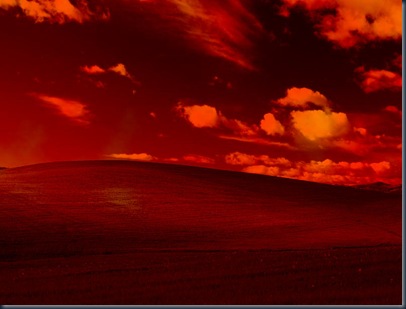
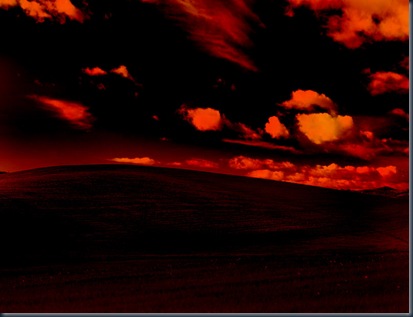
- Select the Bliss layer by clicking on it once and select the burn tool (Keyboard Shortcut : O), use the following settings on your Burn tool : Brush size : 145, Range : Shadows, Exposure 17%
- Apply the burn tool on the sky only and try to leave the line where the mountains and the sky meet without burning, try to fade the burning as you get to that line, this will be used to create an illusion of depth and will be used to enhance the Volcanic and volatile nature of the image
- Open This image , right Click on it and choose Copy . Go to Photoshop , select the Bliss layer by clicking on it once and press Ctrl+V (Paste) to paste in the layer above the Bliss layer , Double click on the layer to rename it, call it Volcano one
- These next few steps are completely up to your aesthetics but I will give you my settings just for preference
- Press Ctrl+T (Transform) to bring up the free transform tool to scale down the new volcano image, hover your mouse over one of the corners of the box, when you get a two headed arrow click on it and hold , while still holding the left mouse button press Shift + Alt on your keyboard to scale it while maintaining its dimensions , Scale it down to 44.2 % and put it on the middle left of the picture, somewhere around our horizon line (the line that separates the mountains from the sky that we kept unburned in the previous steps)
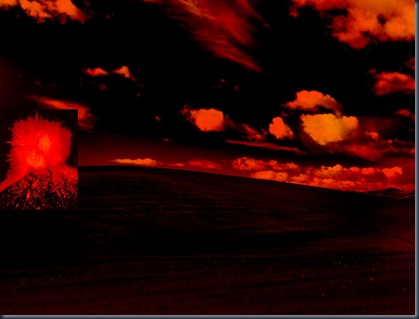
- Choose the layer "Volcano 1" and try to blend it in with the background as much as possible using a mixture of eraser tool and burn tool, select the eraser tool (Keyboard Shortcut : E) and select a brush of 0 Hardness and relatively big size (I used 34)
you can access Brush setting by right clicking anywhere on your work area while selecting the eraser tool
- Use the eraser tool on the Volcano one layer at the right top corner to show the clouds behind it and use it in the bottom of the image to delete a bit of its edge so it blends in better with the background.
- Select the Burn tool (Keyboard Shortcut “O”) and select the Bliss layer, use it on the horizon line and anywhere else you find necessary to conceal any edges , you can also use it on the volcano one layer around the bottom edge to make it even blend more with the background
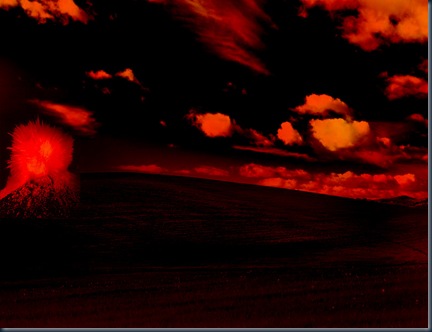
- Open This image , Right click and select copy. Choose the Volcano one layer and press Ctrl+V then double click on the layer and rename it Volcano two , Scale it down to 41.5 % and place it somewhere next to the other volcano
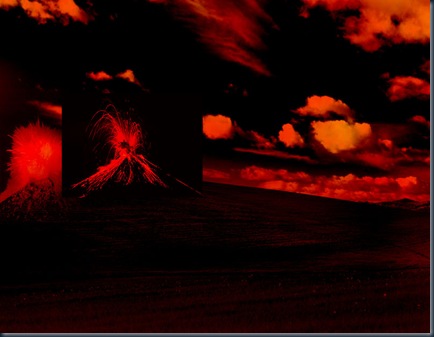
We are going to use a mixture of burn and eraser tool as we did to the previous Volcano, the image now should look something like this
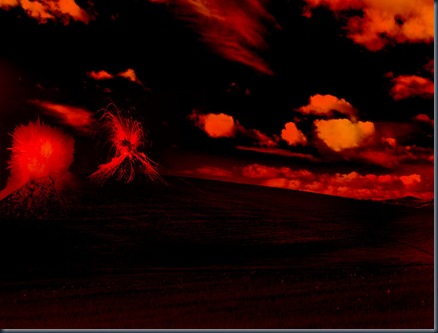
- Now for the fun part, Choose the Bliss layer again and press Ctrl+Shift+N to create a new layer, name the new layer "Cracks", then press Ctrl+D, now your foreground is Black and your background color is white
- Go Filter > Render . Clouds , Then Go Filter > Render > Difference Clouds , press Ctrl+F a few times to reapply the effect until you get something you like then press Ctrl + I to invert the colors
- Go Image > Adjustments > Threshold and move the cursor around until you get a clear line , you should try and get something similar to the image below
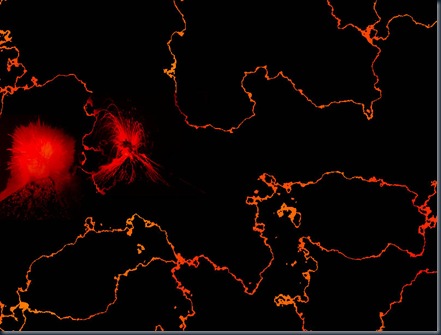
- Go Select > color range and make sure you have the image option selected , click anywhere on a black spot in the image preview in the options window and click OK
- Make sure you have the Cracks layer selected and press Ctrl+Shift+I to invert the selection, now Press Delete to remove all black areas from your layer and you'll be left with something like the image below
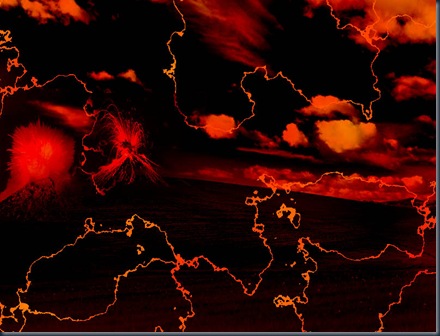
- Press Ctrl+T to select the free transform tool and scale it down only vertically , you should now have something like the image below
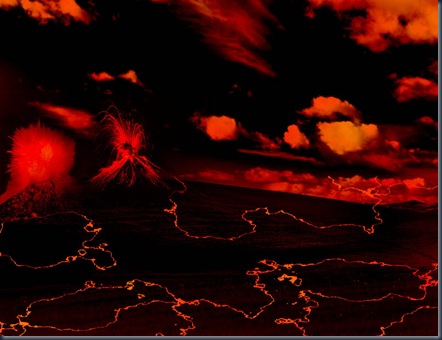
- Use the Eraser tool to erase any parts of the cracks layer you find unnecessary and make sure it looks well with the horizon line, the final image should be something like the image below
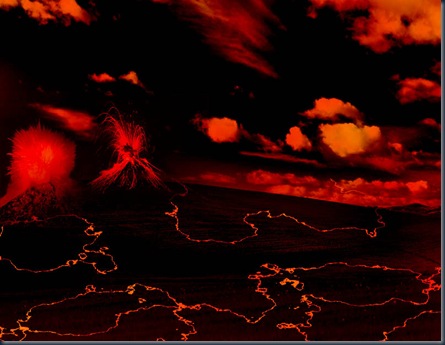
- Click on the small arrow at the top right side of the layers panel and choose flatten image, you can also do this by selecting all your layers and pressing Ctrl+E, you should now be left with only one layer, rename it into "Abyss" and press Ctrl+J to Duplicate it
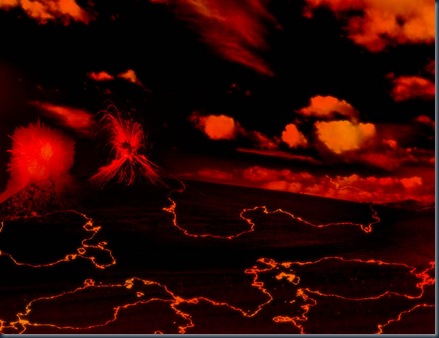
- Go Filter > Blur > Gaussian Blur and select a radius of 2.0, select a blending mode of Linear Light and use the Eraser tool to clear out around the erupting Volcanoes so that they don't become too bright, Press Ctrl + E or flatten image and the final product should look like the image below
- Duplicate again by Pressing Ctrl + J and then Go Filter . Render > Motion Blur , in the options window let the angle be 90 and the distance be 50 , now once again use the eraser tool around the erupting Volcanoes and whatever place you find necessary, try to stay away from the cracks we have made , the blur effect is especially made for them so don't erase anything above them, Press Ctrl + E or flatten image
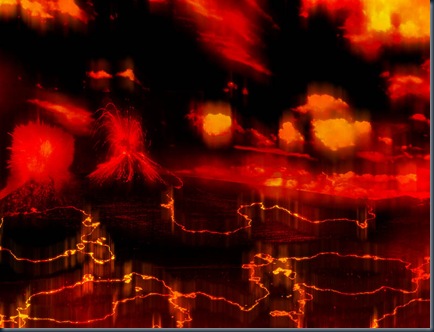
- Finally use the burn tool to put the final touches if you feel like some spots need it and press Ctrl + Shift + N to create a new layer, Go Filter > Render > Clouds (While using black as a foreground color and white as a background color) , Select a blending mode of Color Dodge for this layer and once again use the Eraser tool around the erupting volcanoes and the horizon line and stay as far away from the cracks we have created as possible, Press Ctrl+E or flatten image and save , the final product should be something like the image below , you now know how to turn Bliss into an Abyss